Look Professional on Every Video Call: WFH Setup
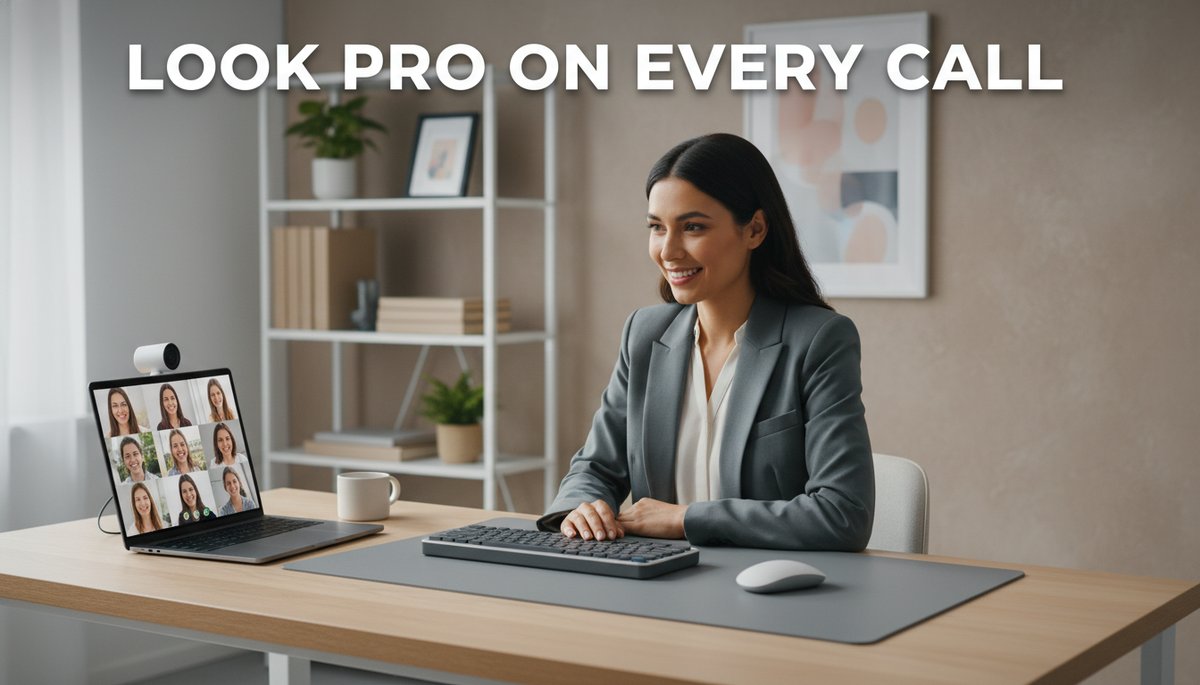
Look Professional on Every Video Call: WFH Setup
You join the call, your camera flicks on, and there you are: lit from below, slightly out of focus, framed so the ceiling fan gets more screen time than your face. For remote workers and candidates, that first impression is the impression. The good news? Learning how to look professional on video calls has almost nothing to do with spending money — and everything to do with two free adjustments most people never make.
Disclosure: This post contains affiliate links. If you make a purchase through these links, we may earn a small commission at no extra cost to you. We only recommend products we genuinely believe in.
Quick Answer: To look professional on video calls, start free: raise your camera to eye level and face a window so soft daylight hits your face. From there, upgrade in order of impact — a dedicated webcam, a key or ring light, a clear-sounding mic, and a tidy background. Fix your angle and lighting before you buy anything; they matter more than any gear.
Whether you're trying to nail your remote interview or just want to stop dreading the daily standup, this setup gets you there in order of what actually moves the needle.
The #1 Free Fix: Camera at Eye Level
The single biggest upgrade to how you look on camera costs nothing: put the lens at eye level. Laptop cameras sit low, so they shoot up your nose and into your ceiling — an angle that flatters no one and quietly reads as unprepared.
The fix is to lift your laptop until the camera lands at your brow line, with your eyes about a third of the way down the frame. A stack of books works in a pinch. For a stable, repeatable setup, an adjustable laptop riser stand holds the camera at eye level every time and improves your posture as a bonus.
Try this now: Open your camera app, raise the lens to eye level, and sit up straight. That one change does more for your on-screen presence than any gadget.
This matters even more in remote roles with constant video meetings, where you're on camera for hours. Get the angle right once and it pays off every single call.
Best Webcam Lighting for Working From Home
The best webcam lighting for working from home is soft, front-facing light at eye level — and a window gives it to you for free. Face the window so daylight lands evenly on your face, and never sit with a bright window behind you, which turns you into a silhouette.
Daylight isn't always available, though. If you take calls after dark or your room is dim, a dedicated light fills the gap. An Elgato Key Light mounts above your monitor and gives broadcast-quality, dimmable light; for a budget alternative, a Neewer LED ring light delivers the same even glow for far less.
Tight on desk space or working from a laptop only? A clip-on ring light for laptop attaches right above the screen and travels well for interviews on the go. Whatever you choose, position the light in front of and slightly above your face — never to the side or below.
Upgrade Your Webcam (When You're Ready)
Once your angle and lighting are dialed in, a dedicated webcam is the next real jump in quality. Most laptop cameras max out at grainy 720p; an external 1080p or 4K webcam delivers a crisp, professional image that holds up on a big monitor.
For a premium pick, the Logitech Brio 4K webcam offers sharp detail and strong low-light handling. If you want excellent quality at a friendlier price, the long-trusted Logitech C920 webcam remains a remote-work staple.
Mount it at eye level too. A small desktop webcam tripod stand lets you place the camera exactly where it flatters you most, independent of where your monitor sits.
Sound Professional: Fix Your Audio
People forgive a slightly soft image, but they won't forgive bad audio. Built-in mics pick up echo, keyboard clatter, and room hum — all of which read as unprofessional, especially in interviews where every word counts.
For a clean, broadcast-style sound on a desk, the Blue Yeti Nano microphone is a reliable upgrade, while the Fifine USB microphone gets you most of the way there for a fraction of the cost.
Prefer to keep your hands free and your desk clear? A Rode wireless GO microphone clips to your shirt for crisp, close-up audio, and a simple clip-on lavalier mic USB does the same job on a tight budget. Either way, position the mic close to your mouth and mute when you're not speaking.
Clean Up Your Background
Your background frames you as much as your lighting does. A real, tidy space almost always beats a virtual one: clear clutter from view, add one calm element like a plant or a bookshelf, and make sure the area is evenly lit so it doesn't fall into shadow.
If your room simply can't be made presentable, a collapsible green screen backdrop sets up behind your chair in seconds and makes virtual backgrounds look clean, with crisp edges instead of the flickering halo you get without one.
For the full picture beyond the camera, see your complete home office setup — and once the essentials are sorted, explore more desk gadgets that boost your workday.
Put It Together Before Your Next Call
You now know how to look professional on video calls without turning your home into a studio. Start with the two free fixes — camera at eye level, face the window — because they deliver most of the result. Then layer in a webcam, a light, a mic, and a clean background as your role and budget allow.
Do a 30-second test before your next important meeting: turn on your camera, check your angle, your light, and your sound. Look the part once, and you'll carry that confidence into every call that follows.
Related Posts
AI + Careers Briefing — October 13, 2026

AI + Careers Briefing — October 12, 2026