
Home Office Essentials Every Remote Worker Needs
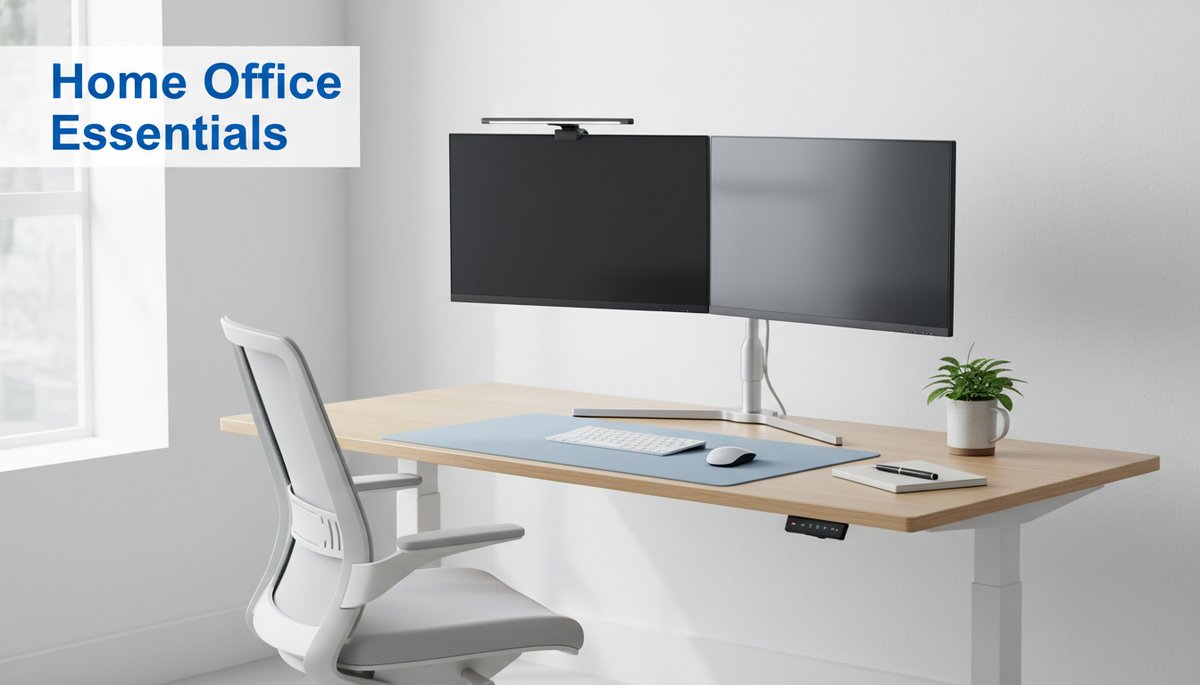
Home Office Essentials Every Remote Worker Needs
The difference between a home office that drains you and one that quietly makes you better at your job rarely comes down to how much you spend. It comes down to choosing the right things — the pieces that protect your body, sharpen how you show up on camera, and let you stop fighting your own setup. After helping two audiences of remote workers and reviewing the gear that consistently earns its place, we've found the same short list keeps surfacing. This guide covers the real home office essentials for remote workers, organized by zone so you can build deliberately instead of impulse-buying your way to clutter.
Disclosure: This post contains affiliate links. If you make a purchase through these links, we may earn a small commission at no extra cost to you. We only recommend products we genuinely believe in.
Quick Answer: A complete home office setup for remote work breaks into four zones: desk and seating (a sturdy or height-adjustable desk plus an ergonomic chair), computing (a capable machine, a laptop stand, and a second monitor), audio-video (an external webcam and USB microphone), and lighting and comfort (a monitor light bar and the small details that reduce fatigue). If your budget is tight, start with seating and a second monitor — they affect your body and focus more than anything else.
Whether you just signed an offer and are focused on landing a legitimate remote job, or you're negotiating to keep working from home after an RTO push, your physical setup is the part you fully control. Let's build it zone by zone.
Zone 1: Desk and Seating — Where Your Body Lives All Day
Start here, because seating and desk surface are the two essentials your body touches for eight hours straight. Cheap out anywhere else and you lose some convenience; cheap out here and you risk back pain that follows you off the clock.
A good desk does one job well: it holds your gear at the right height with room to work. A height-adjustable standing desk earns its keep by letting you alternate between sitting and standing through the day — the posture change is the benefit, not standing for hours. Electric sit-stand frames such as the FlexiSpot standing desk line make switching effortless with a memory-preset controller, which is the feature that determines whether you actually use the standing function or never bother.
Your chair matters even more. You can work at a kitchen table for a while, but you cannot out-discipline a bad chair. Look for adjustable lumbar support, seat depth, and armrests — the three adjustments that fit a chair to your body rather than an average one.
The long-term investment: The Steelcase Series 1 office chair is a benchmark for full-day comfort and tends to last a decade.
The budget alternative: If that's more than you want to spend right now, the SIHOO M57 ergonomic chair delivers most of the adjustability for a fraction of the price.
Tip: Set your chair first, then your desk height to match — your forearms should rest roughly parallel to the floor when typing, with your screen's top edge at or just below eye level.
If you want the absolute leanest version of this zone, you can build a productive home office for under $300 by leading with a budget chair and adding the rest over time.
Zone 2: Computing — The Engine of Your Workday
This zone is about how efficiently you move through work, and the single highest-return upgrade here is screen real estate. A laptop alone forces you to constantly switch windows; a second display lets you keep a document, browser, and chat visible at once, which removes a surprising amount of daily friction.
Most remote workers don't need an ultrawide or a 4K panel — they need a clean, well-sized monitor. A 27-inch 1440p display like the Dell 27 inch monitor S2722 hits the sweet spot of resolution, size, and price for office work, giving you sharp text without scaling headaches.
If you work primarily on a laptop, raise it. A laptop stand brings the screen toward eye level and frees your laptop's keyboard, which is too low and cramped for full-day use. The Rain Design mStand laptop stand is a sturdy, minimalist option that also improves airflow under the machine.
Raising your laptop creates one new need: an external keyboard and mouse, since you can no longer comfortably reach the built-in ones. A reliable wireless set like the Logitech MK270 wireless combo clears your desk of cables and pairs to a single USB receiver — unglamorous, but it completes the ergonomic chain that starts with the stand.
Tip: Position your primary monitor directly in front of you and your laptop screen off to the side as a secondary display, not the reverse. Your neck should stay neutral while looking at the screen you use most.
For the gadgets that go a layer deeper — the extras that genuinely earn space rather than just filling it — see our roundup of 10 work-from-home productivity gadgets worth the desk space.
Zone 3: Audio-Video — How Colleagues Actually Experience You
In a remote role, your video presence is your presence. Coworkers and clients form impressions through a camera and a microphone, so this zone punches far above its cost. The fix is simple: stop relying on built-in laptop hardware.
Laptop webcams sit below your face and are tuned for size, not quality, which is why everyone looks washed out and slightly upward-angled. An external 1080p webcam mounted at eye level solves both problems. The Logitech C920 webcam has been the default recommendation for years because it delivers clean, sharp video and autofocus that holds up in ordinary room lighting.
Audio quality matters even more than video — people forgive a soft image but tune out a muddy, echoey voice. A dedicated USB microphone captures your voice cleanly and rejects room echo far better than any built-in mic. The Fifine USB microphone is an excellent value pick, and if you want a step up that's become an industry standard, the Blue Yeti is the upgrade many remote professionals land on.
Together, a real camera and a real mic are the cheapest way to look senior on a call. If you want to dial this in fully — framing, background, and lighting included — our dedicated guide shows you how to look professional on every video call.
Zone 4: Lighting and Comfort — The Details That Compound
This is the zone most people skip, and it's where the easiest wins hide. Lighting affects two things at once: how much your eyes strain over a day, and how you appear on camera. Both compound over months.
The standout essential here is a monitor light bar — a slim LED that clips to the top of your screen and lights your desk without throwing glare onto the display or into your eyes. The BenQ ScreenBar monitor light is the reference product in this category, with auto-dimming that matches ambient room light. It frees the desk space a traditional lamp would eat and, as a bonus, front-facing light noticeably improves how you read on camera.
Beyond lighting, the comfort details are cheap and personal:
A monitor riser or arm to nail eye-level height if your stand doesn't.
A footrest if your feet don't sit flat once the chair is set correctly.
Cable management (a few clips or a tray) so your desk stays clear enough to think.
A small plant or a closed door — the boundary cues that tell your brain it's work time.
None of these are expensive. Together they're the difference between a desk you tolerate and one you actually want to sit at.
Your Home Office Checklist for 2026
Here's the full home office checklist 2026 in priority order, so you can build in stages rather than all at once:
Ergonomic chair — the non-negotiable. (Steelcase Series 1, or SIHOO M57 on a budget.)
Second monitor — the biggest productivity jump. (Dell S2722.)
Laptop stand + external keyboard/mouse — fix your posture chain. (mStand, MK270.)
External webcam + USB microphone — upgrade how you show up. (C920, Fifine.)
Standing desk — add posture variety. (FlexiSpot.)
Monitor light bar — the finishing detail. (BenQ ScreenBar.)
You don't need all of this on day one. Buy the two things that touch your body and eyes — the chair and the monitor — first, then add a zone at a time. A remote work desk setup built this way is one you grow into, not one you regret.
The best home office is the one that disappears into the background and lets you do your best work — which is the same mindset behind future-proofing your remote career. Get the foundation right, keep it simple, and let the setup compound in your favor every single workday.
Related Posts

AI + Careers Briefing — November 2, 2026
AI + Careers Briefing — November 1, 2026